
Source material
Bring several separate images together.
Several images in. One finished image out.
Combine separate images on one canvas. Arrange, layer, crop and finish them locally, then export a single composition for your presentation, document or next piece of work.
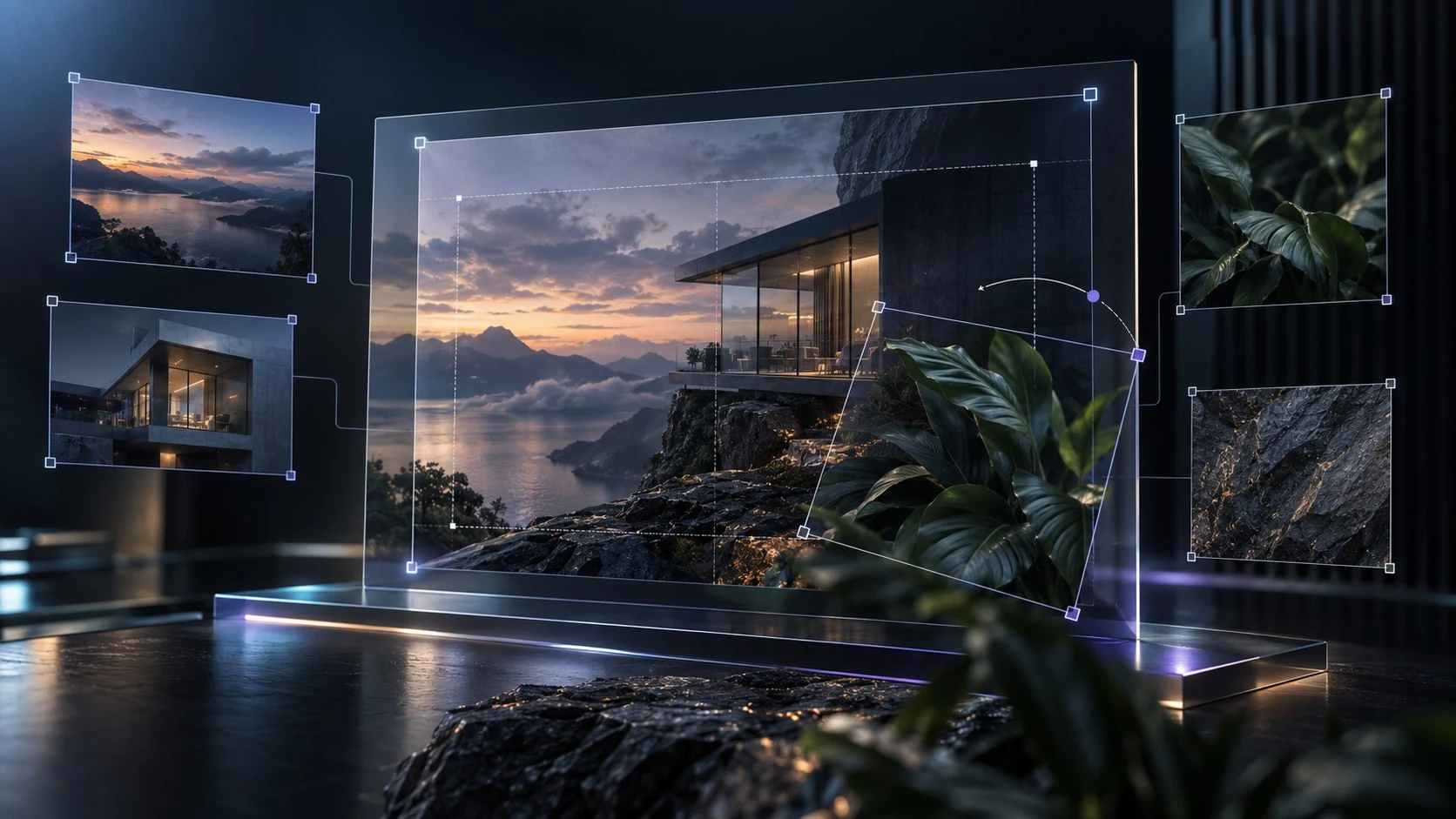
Several images. One composition.
Keep the canvas central while you combine and finish your source images.
Bring several separate images together.
Arrange each element on one visible canvas.
Take a single result into another piece of work.
Use Image Composer with your VISINVOKE account.
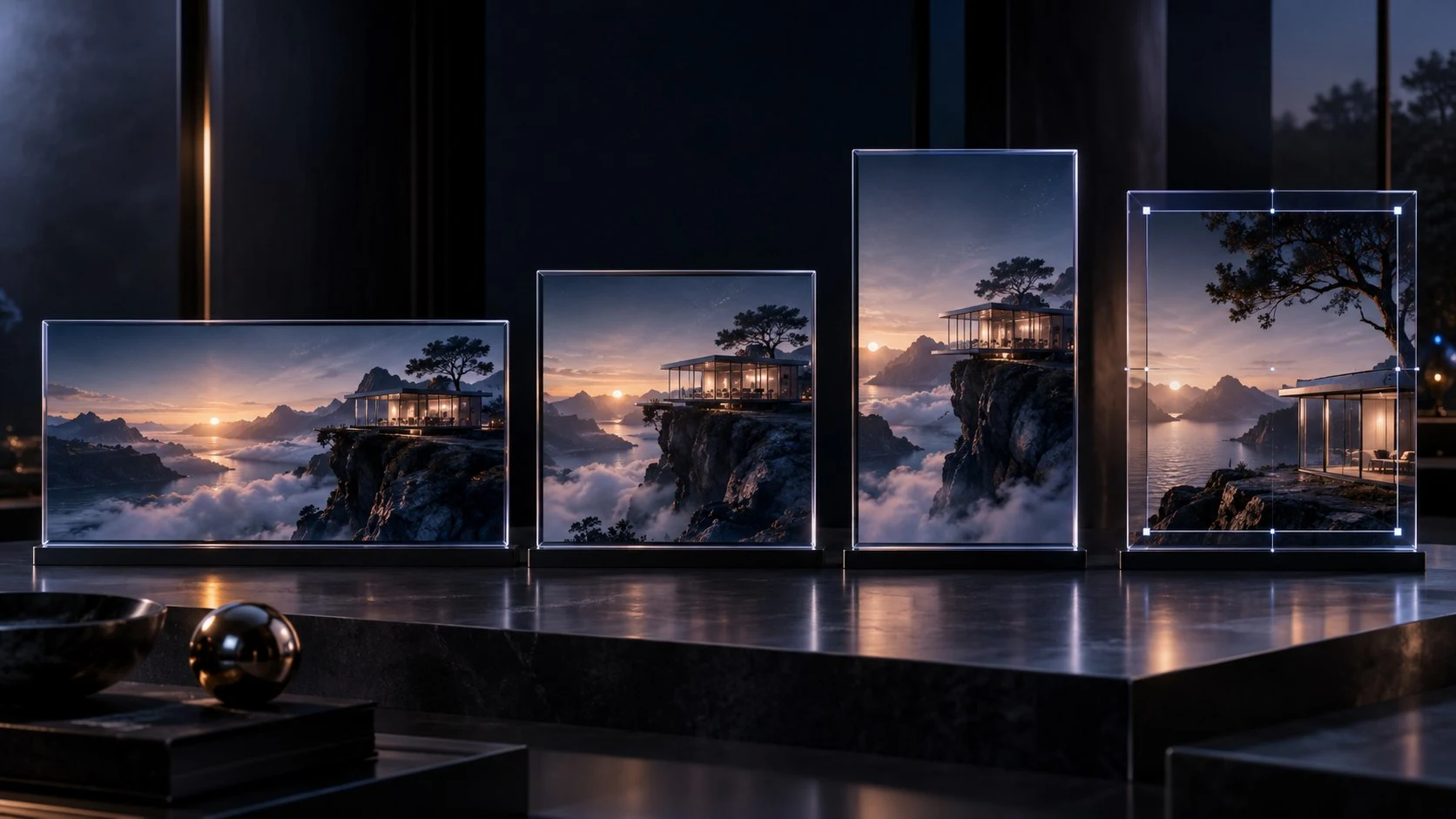
Set the canvas for your destination
The illustration shows canvas choices, not an application screenshot.
Choose transparent, white or coloured backgrounds.
Set the shape or exact pixel size your finished work needs.
A direct four-part workflow
Shape the composition while you can see the whole result.
Use Add Image or drop your sources onto the canvas.
Move, resize, rotate and set the layer order.
Crop, flip and adjust image styles.
Export your chosen format or copy the canvas.
Your image composition controls
Work on each image while you can see the whole layout.
Use Add Image or drop several images onto the canvas.
Move images directly, resize from corners and rotate each element.
Bring forward, send backward or move an image to the front or back.
Trim edges and corners, flip an image or reuse it within the composition.
Adjust shadow, border, rounded corners and opacity.
Use transparent, white or coloured backgrounds and widescreen, square, portrait or custom pixels.
Choose PNG, transparent PNG, JPG or WebP, or copy the canvas to the clipboard.
Work on your own machine through DCC or directly in your browser.
A canvas that fits the destination
Build within the boundary your final work needs.
Use 16:9 for a presentation composition.
Choose a canvas shape for the destination.
Set a specific width and height.
Use transparency, white or a colour.
Direct control in context
Keep the layout visible while you refine its individual elements.
Move directly and resize from corners.
Turn an image and choose what sits in front.
Trim edges and corners, flip or duplicate.
Set shadow, border, rounded corners and opacity.
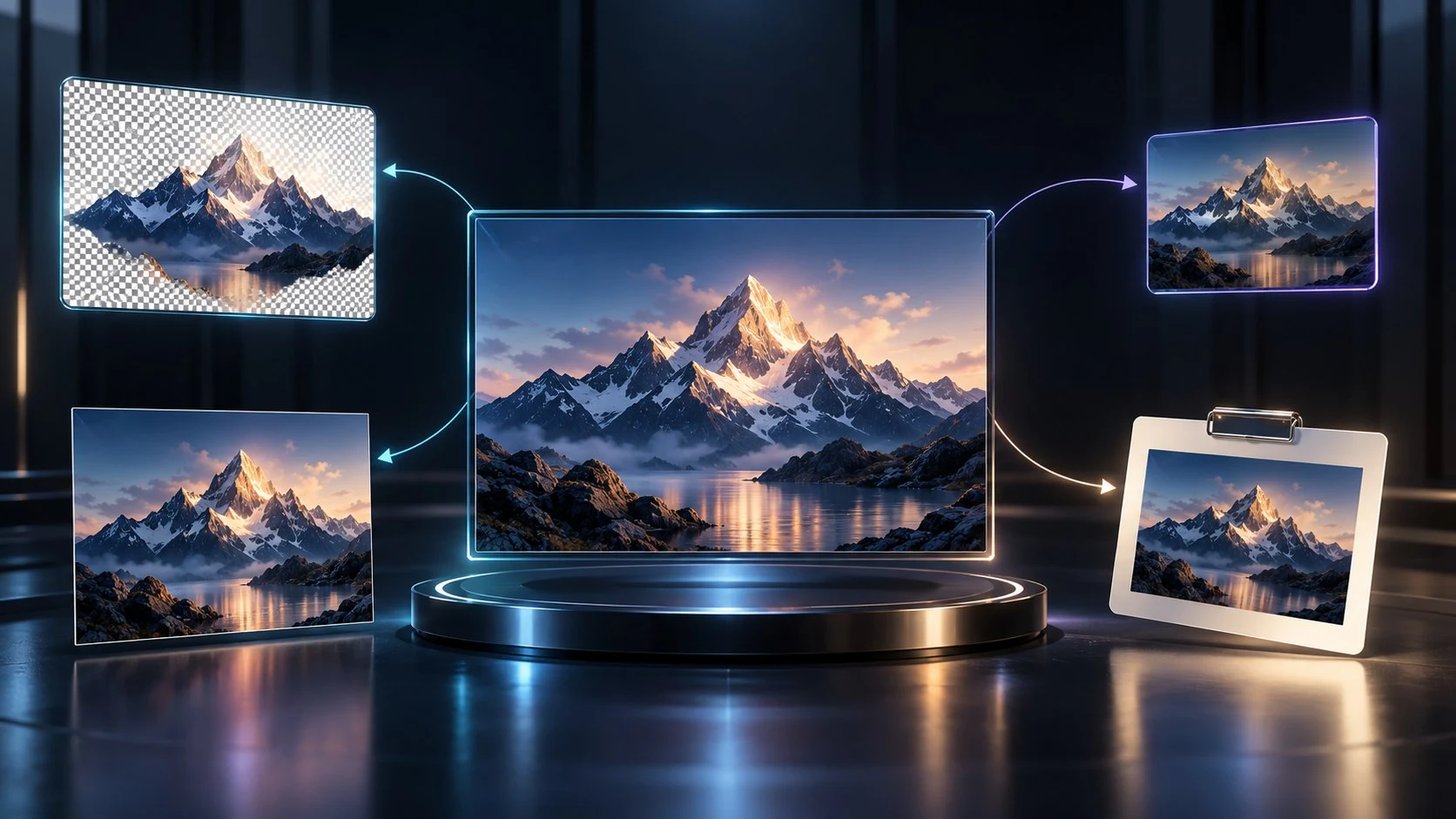
One image for the next step
Choose PNG, transparent PNG, JPG or WebP.
Copy the finished canvas to the clipboard for another piece of work.
Take one composed image into your presentation, document or email.
Local image composition
Work through DCC or directly in your browser.
Compose source images on your own computer.
No external composition upload step is required.
Use your VISINVOKE account.
No trial timer or reduced free utility.
Free VISINVOKE utility
One account for your local composition workspace.
Use Image Composer with your VISINVOKE account.
The utility has no trial timer or reduced free edition.
Open Image Composer through Desktop Command Centre or directly in your browser.
Source images, composition and finished result remain on your computer.
VISINVOKE means value
A focused local canvas for arranging source material and taking one result away.

Move and shape each image in context.
Choose a canvas for the finished work.
Export an image or copy the finished canvas.
Do the composition work on your own machine.
Explore your VISINVOKE workspace
Each card opens its own product website. Review purpose and access separately; related products do not promise included access or automatic synchronisation.
Open your VISINVOKE products from Windows.
Convert files for the next step in your work.
Develop a separate campaign setting.

Develop the places your party travels through.
Explore separate adventure environments.
Explore separate fantasy image creation.
Product artwork is illustrative, not application screens or actual generated image output.
Quick answers
Understand the controls, canvas, exports and free local access.
Combine separate images on one canvas and export a single finished composition for a presentation, document, email or another tool. Add or drop source images, then arrange and finish each element in context.
Move, resize and rotate images, then set their order with forward, backward, front and back controls. Crop from edges and corners, flip or duplicate, and adjust shadow, border, rounded corners and opacity.
Choose a transparent, white or coloured canvas. Use widescreen 16:9, square 1:1, portrait or an exact custom pixel size to suit the destination.
Export the finished canvas as PNG, transparent PNG, JPG or WebP. You can also copy the finished canvas to the clipboard for use in another piece of work.
Image Composer performs image composition locally on your own machine through Desktop Command Centre or directly in your browser. Your source images, composition and result remain on your computer; no separate composition upload service or third-party editing account is needed.
Image Composer is free with your VISINVOKE account, with no trial timer or reduced free edition. Create a free account and open the utility through Desktop Command Centre or directly in your browser. For Windows DCC, get the installer from your account installer page.
Continue in VISINVOKE
Create a free VISINVOKE account and open Image Composer through DCC or your browser.
For Windows DCC, get the installer from your account installer page.